How to Confirm or Reject a Transaction?
Overview
This tutorial will show how to confirm or reject a transaction.
Confirm Transaction
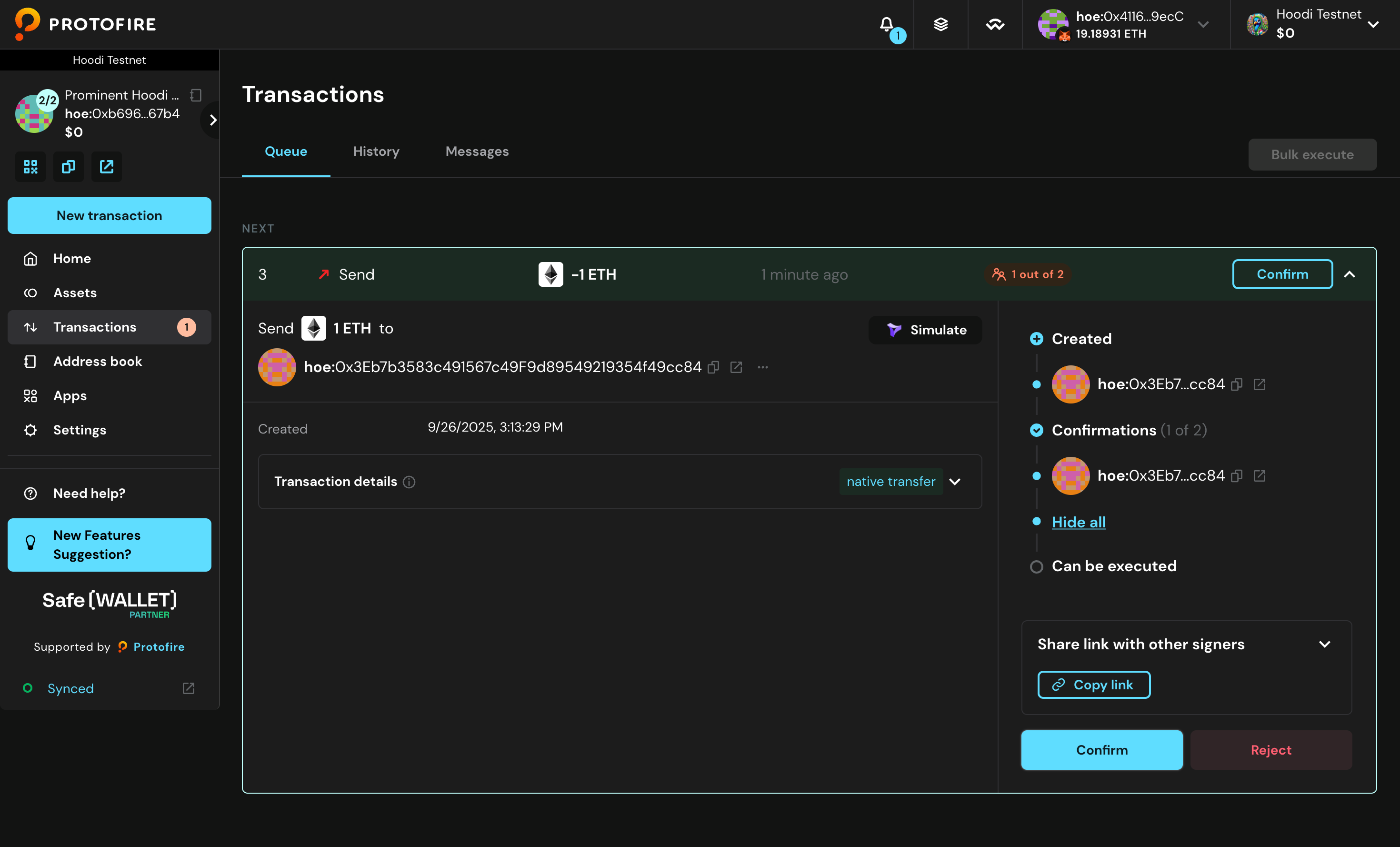
- This transaction has already received one signature, but needs one more to be executed. If you want to proceed, click Confirm.
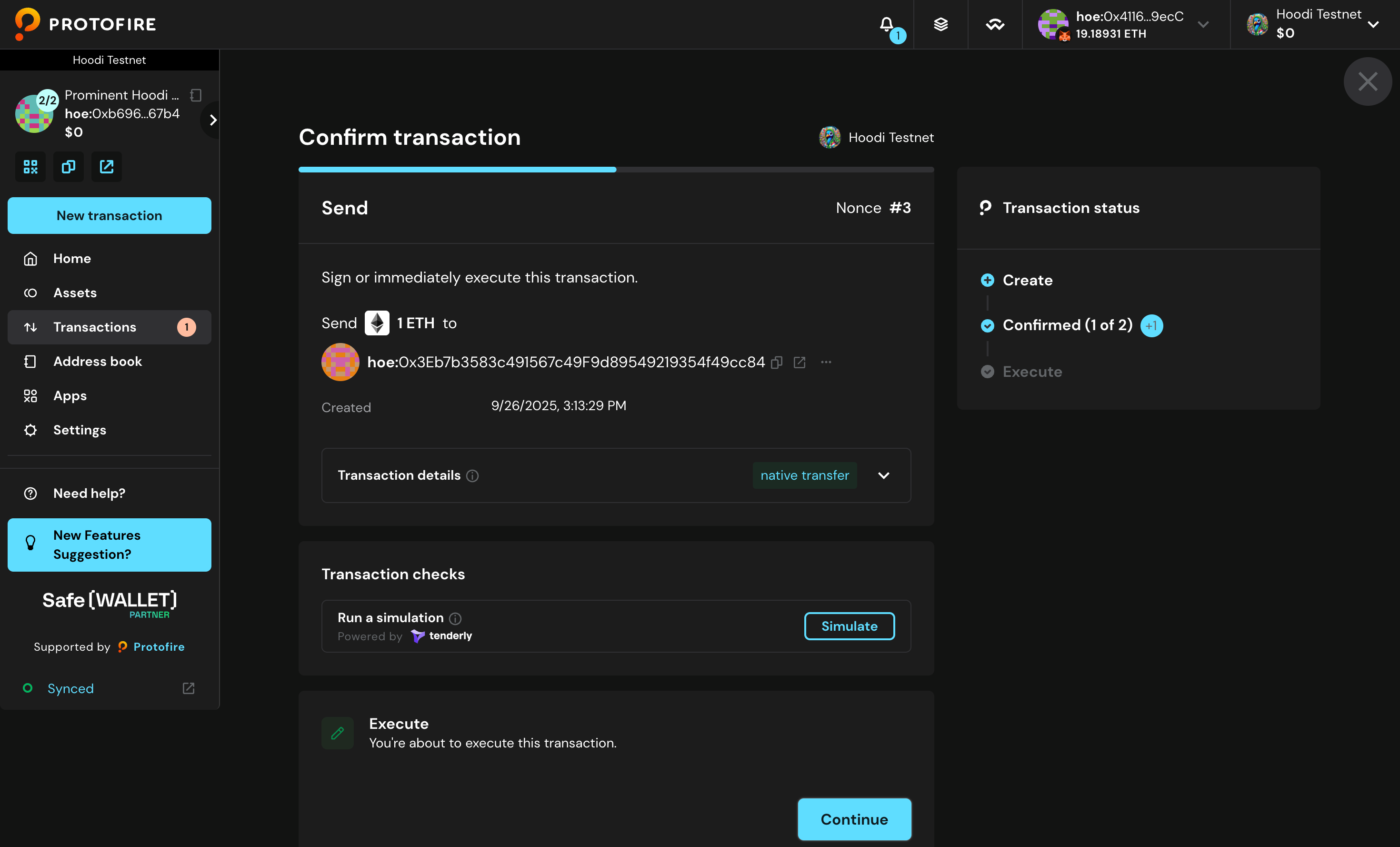
- Select Continue to proceed.
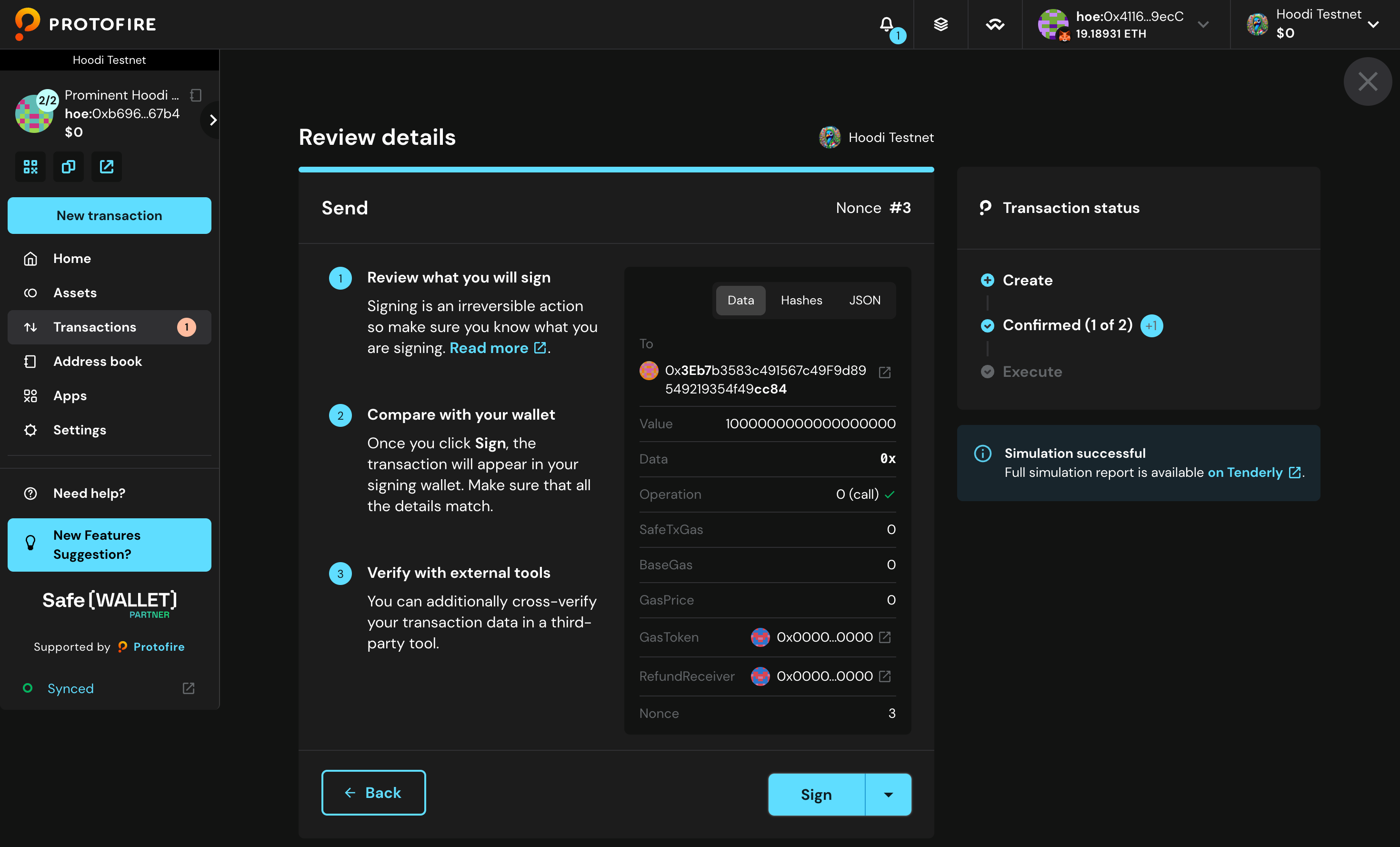
- Click Sign to proceed with signing the transaction
- The transaction has been signed successfully.
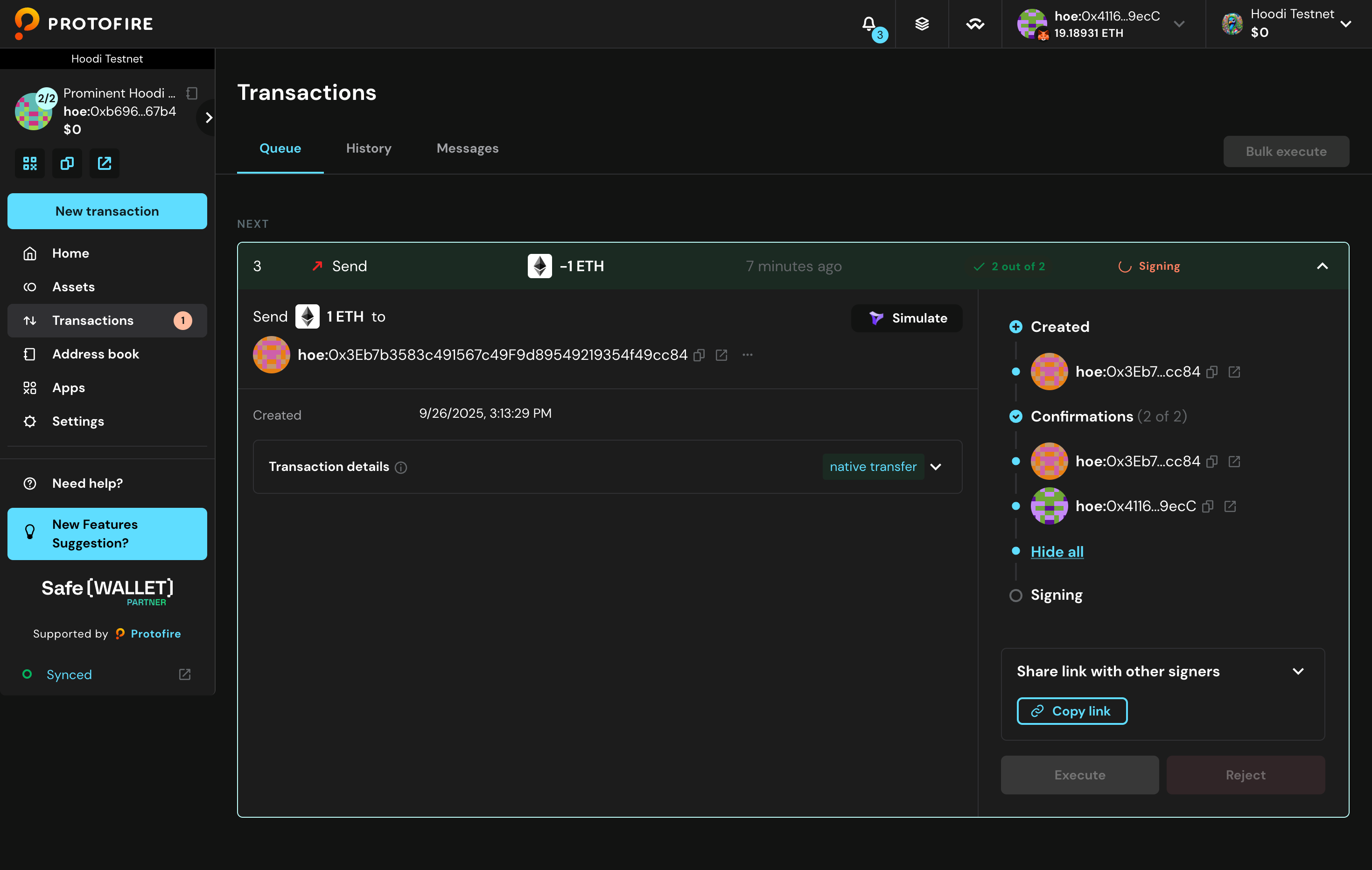
- Click Execute to begin execution.
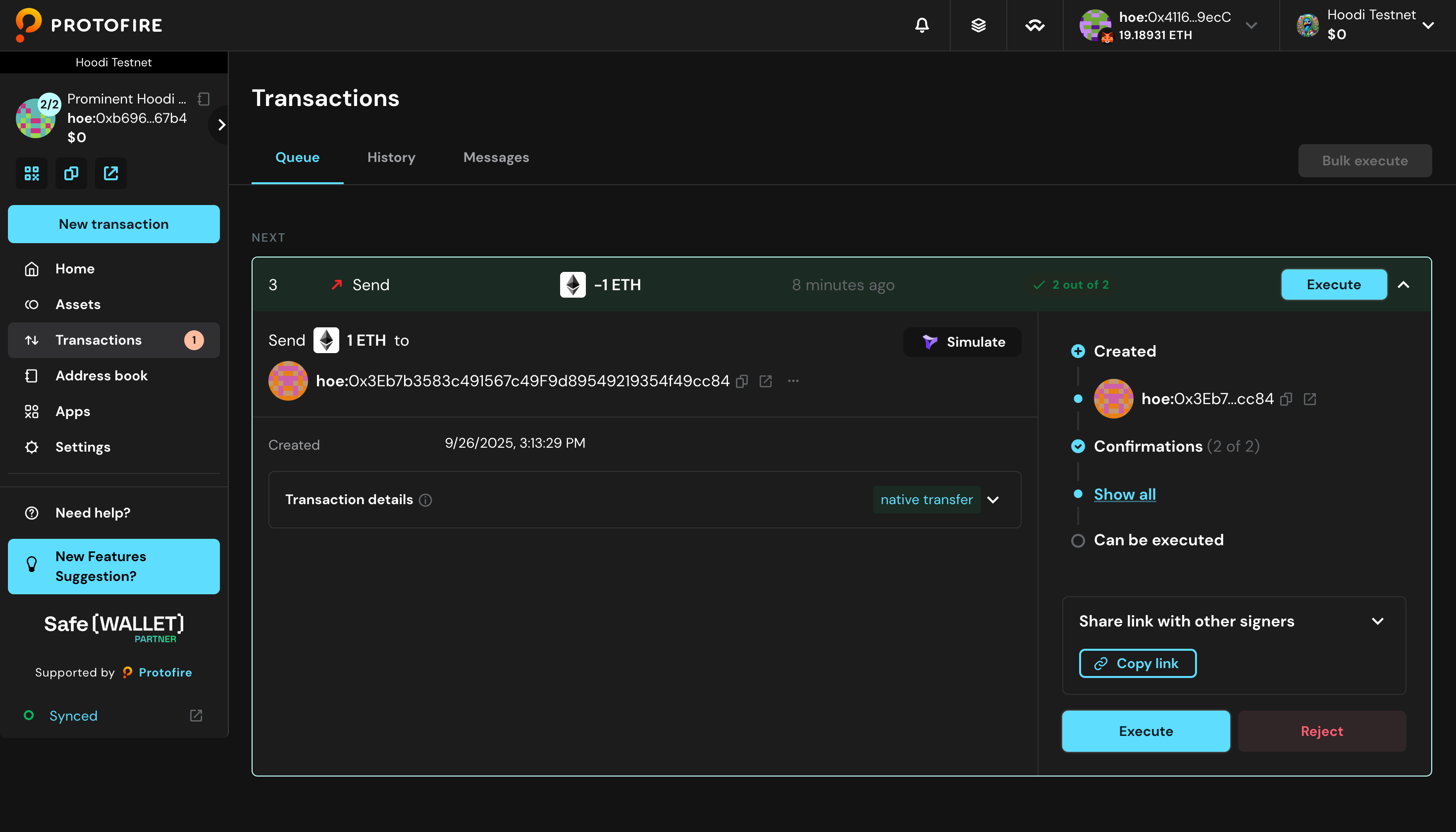
- Confirm execution by clicking Continue.
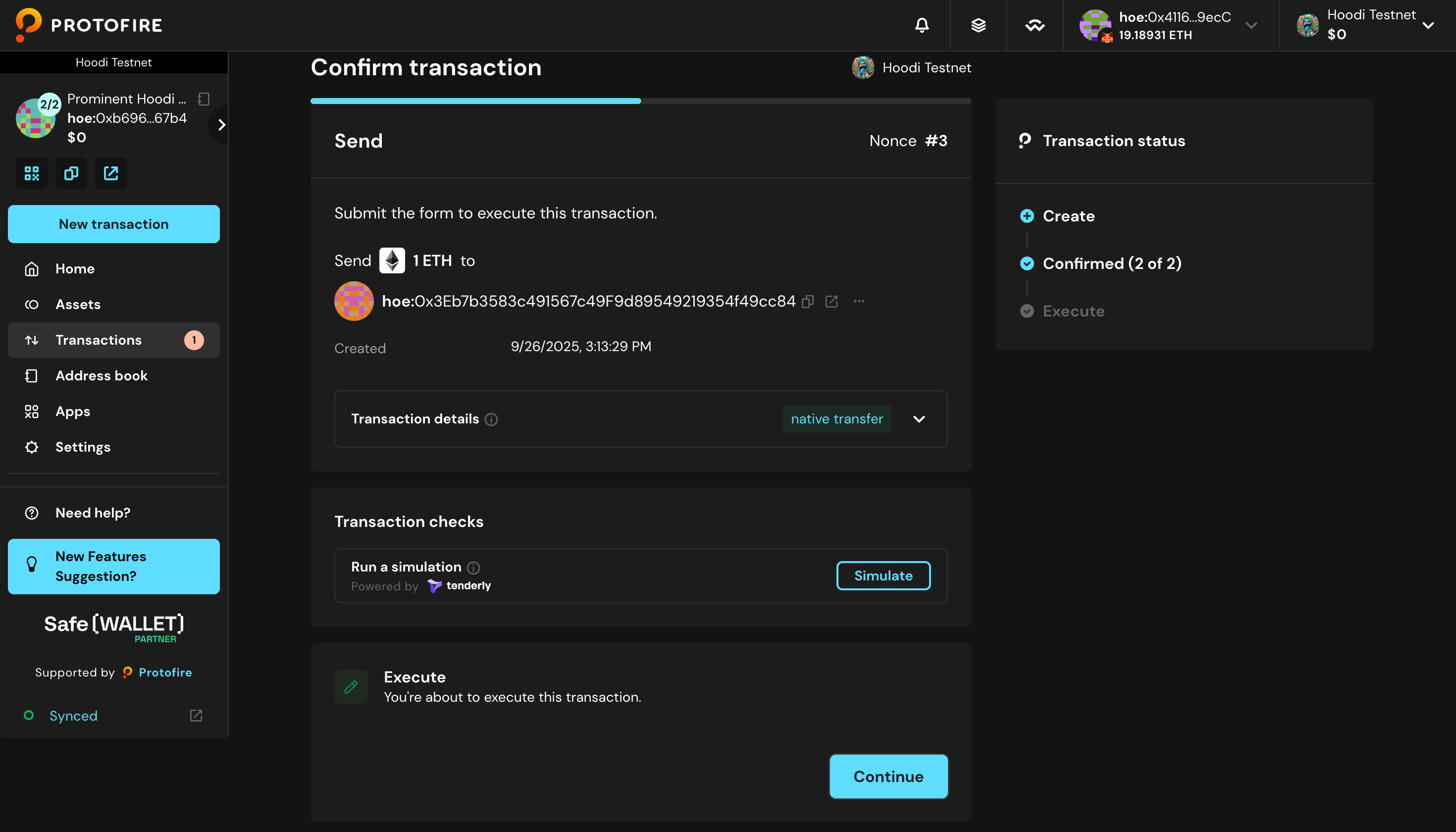
- Complete execution by clicking Execute once more.
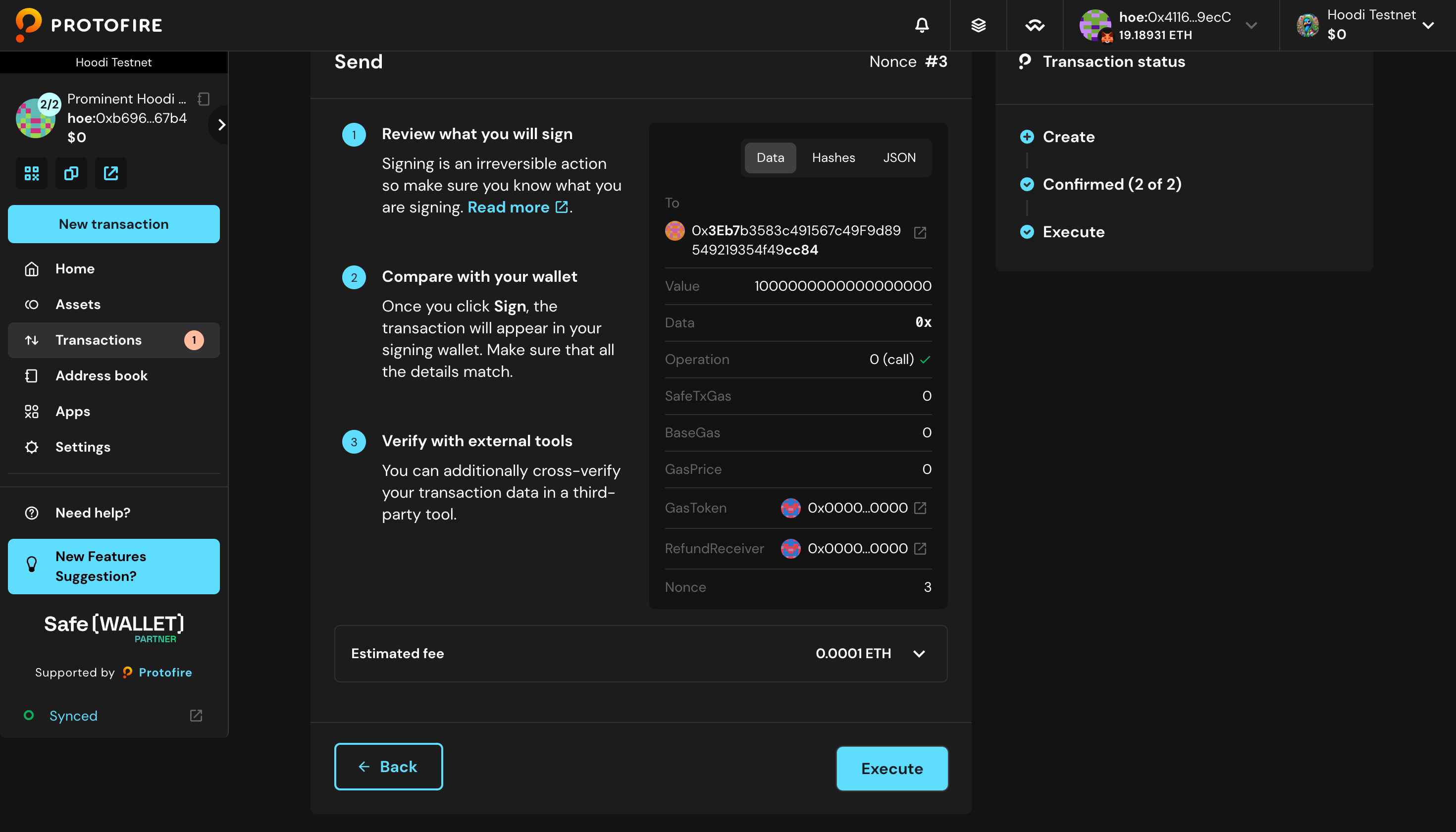
- The transaction is now being processed.
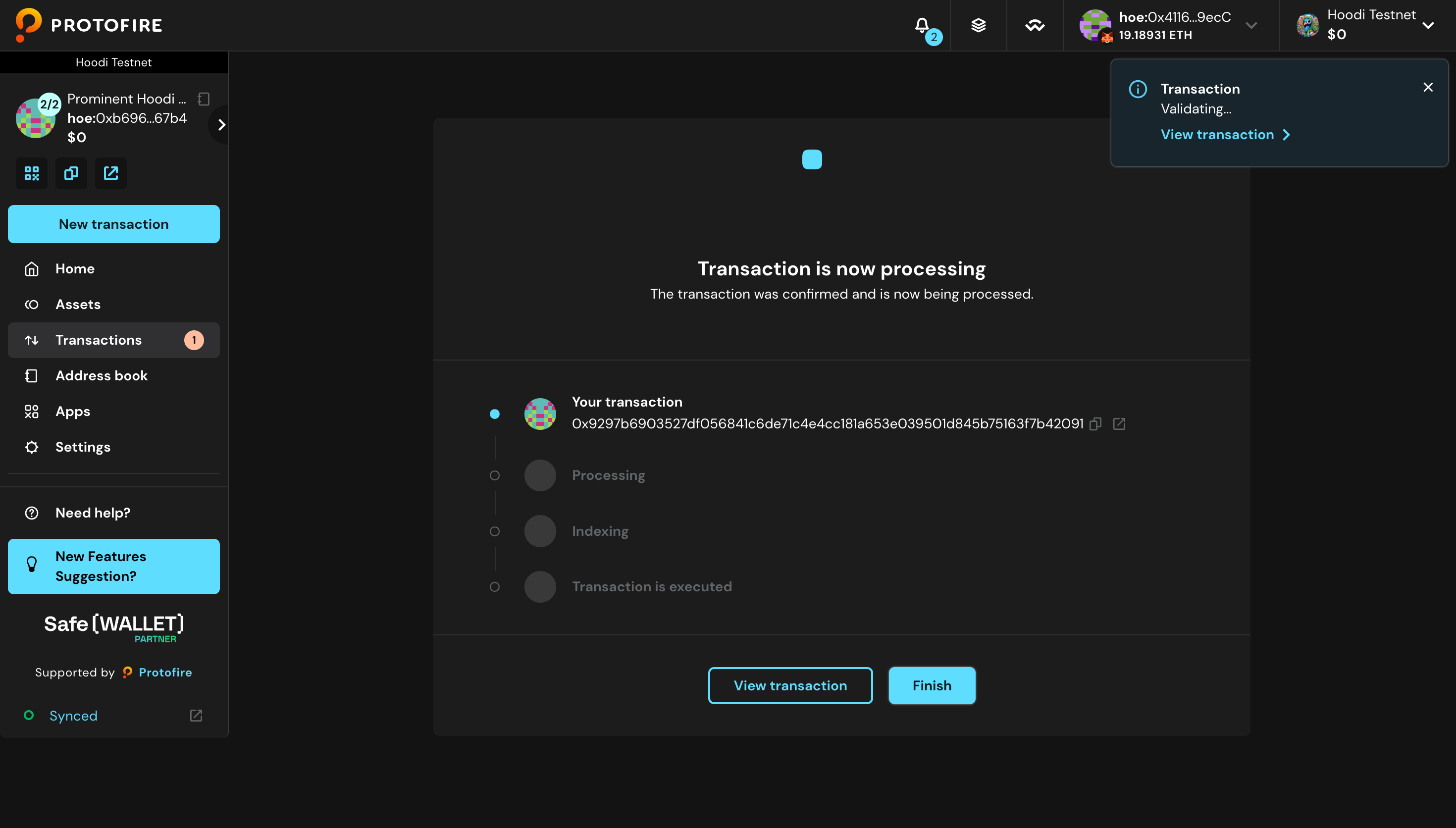
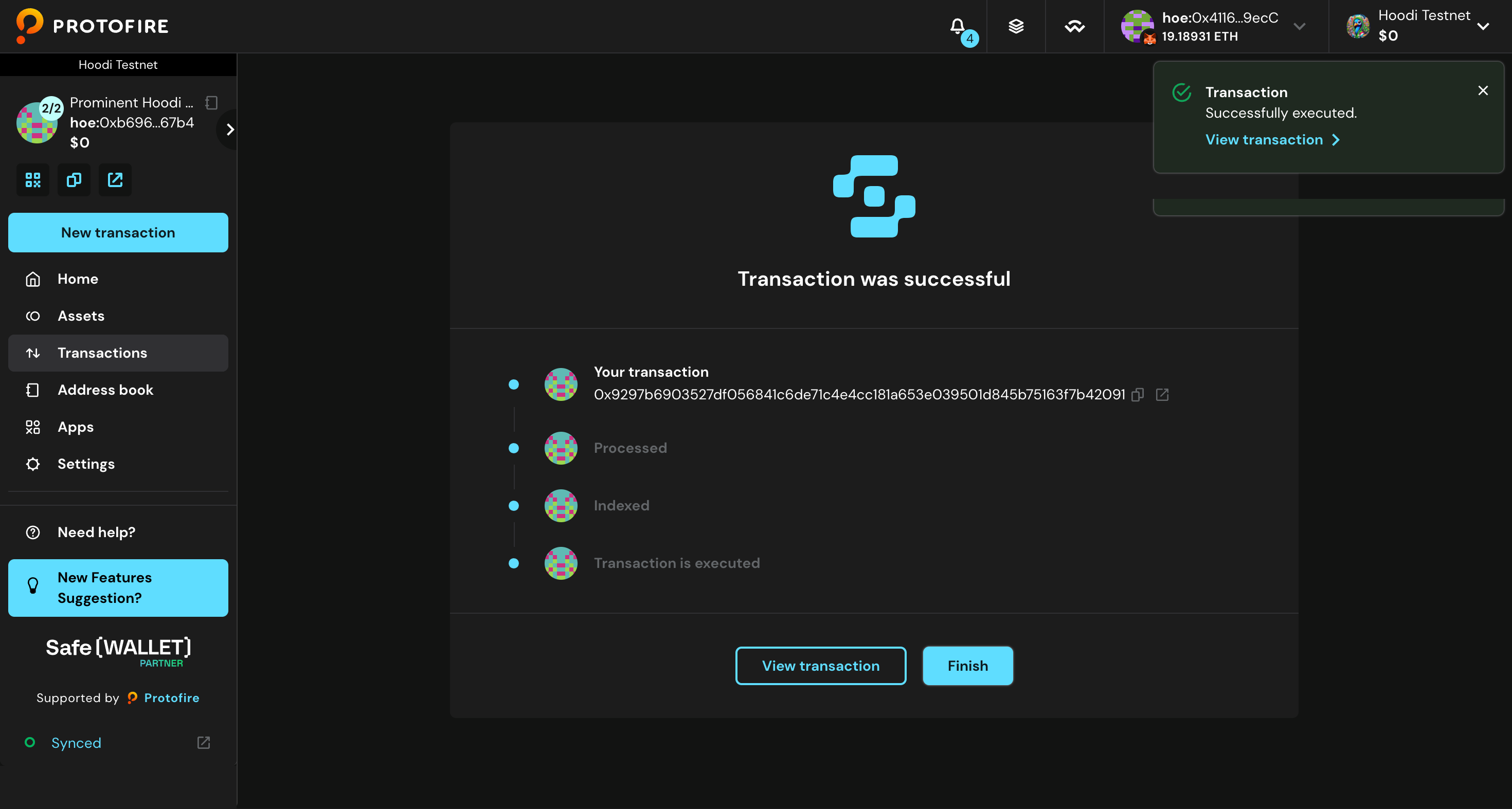
- Wait for a couple of seconds, and you should see:
Reject Transaction
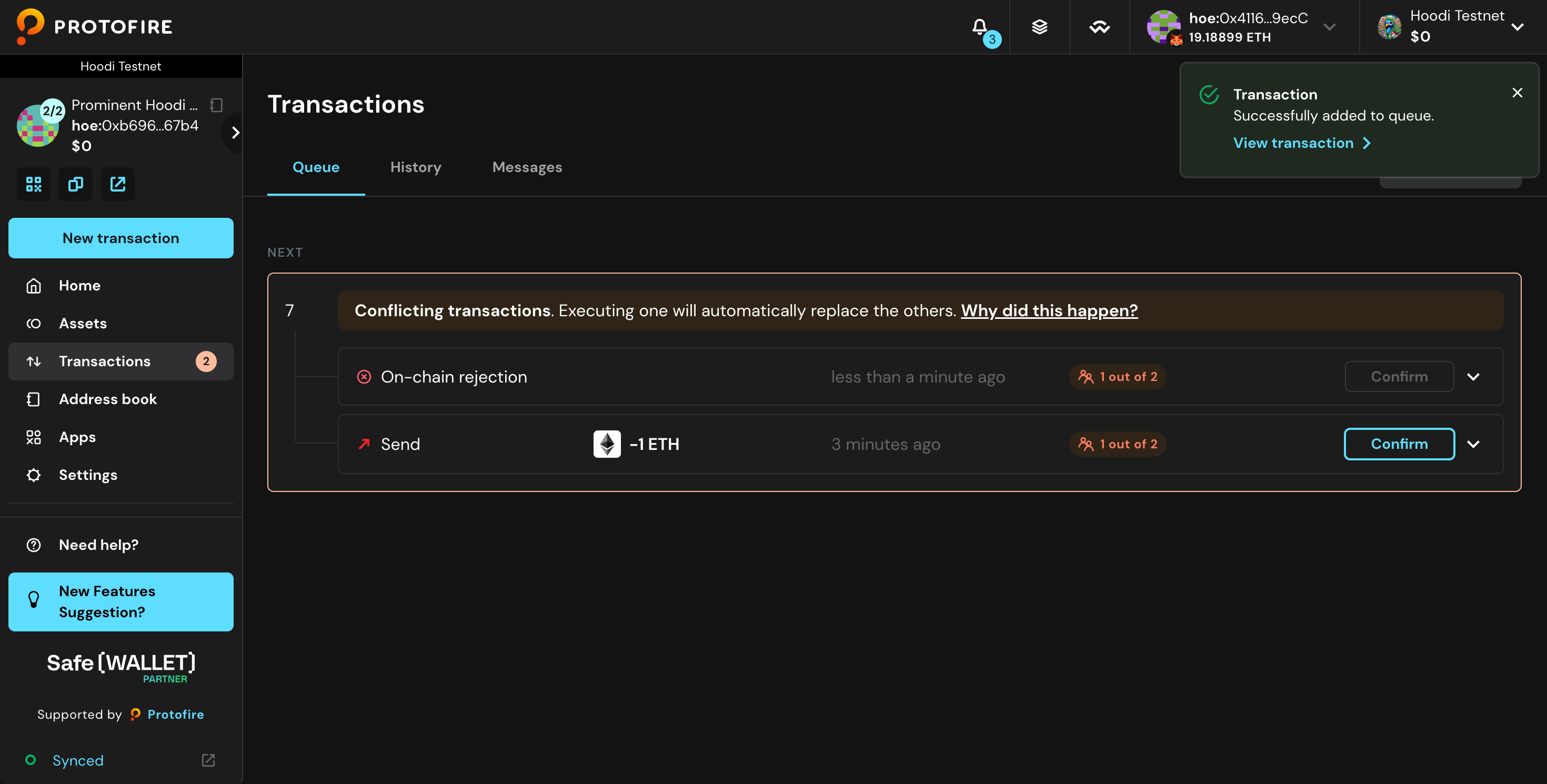
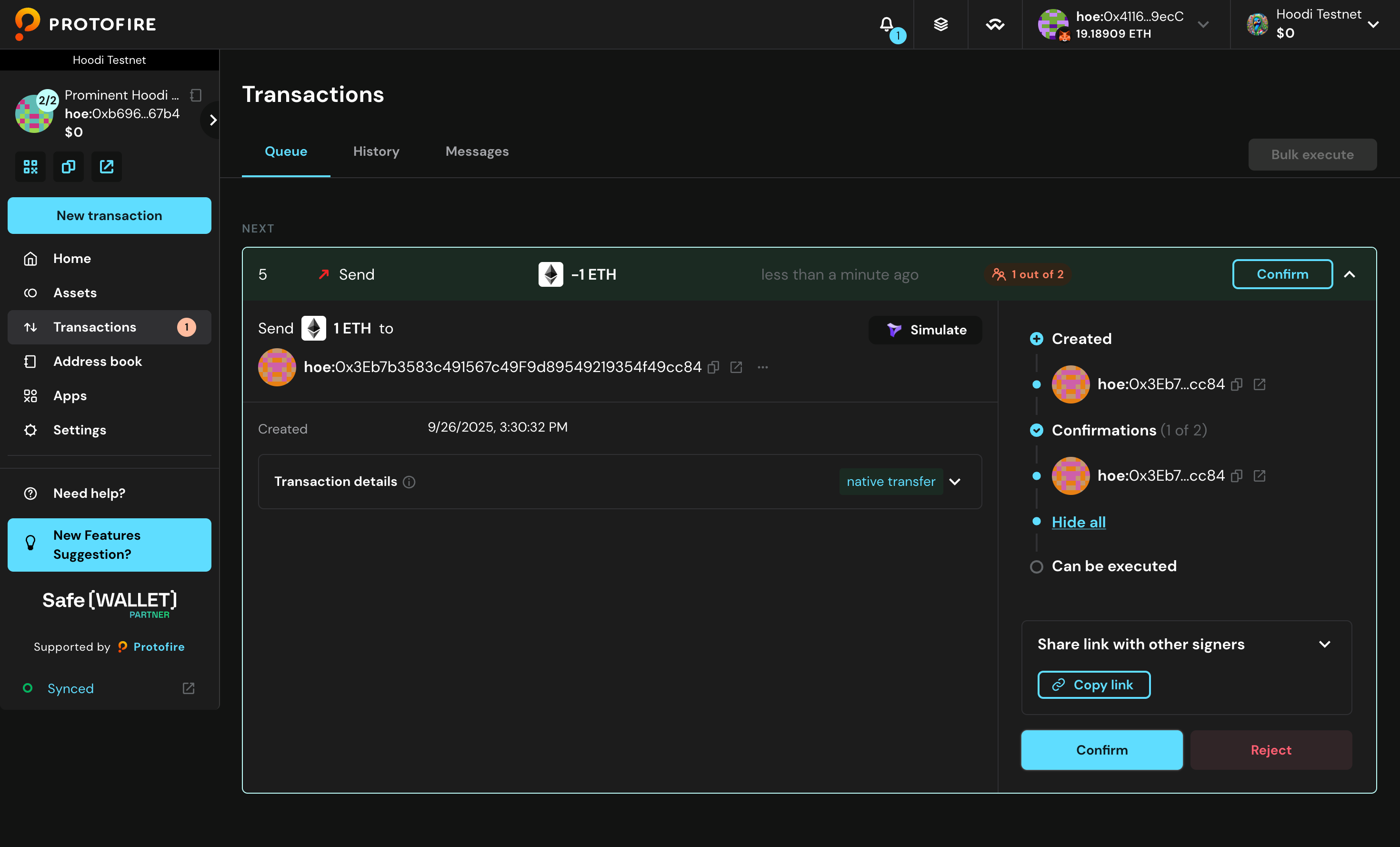
- This transaction has already received one signature, but needs one more to be executed. If you do not want to proceed, click Reject.
- Two options: Replace with another transaction or Reject transaction. This tutorial will demonstrate both.
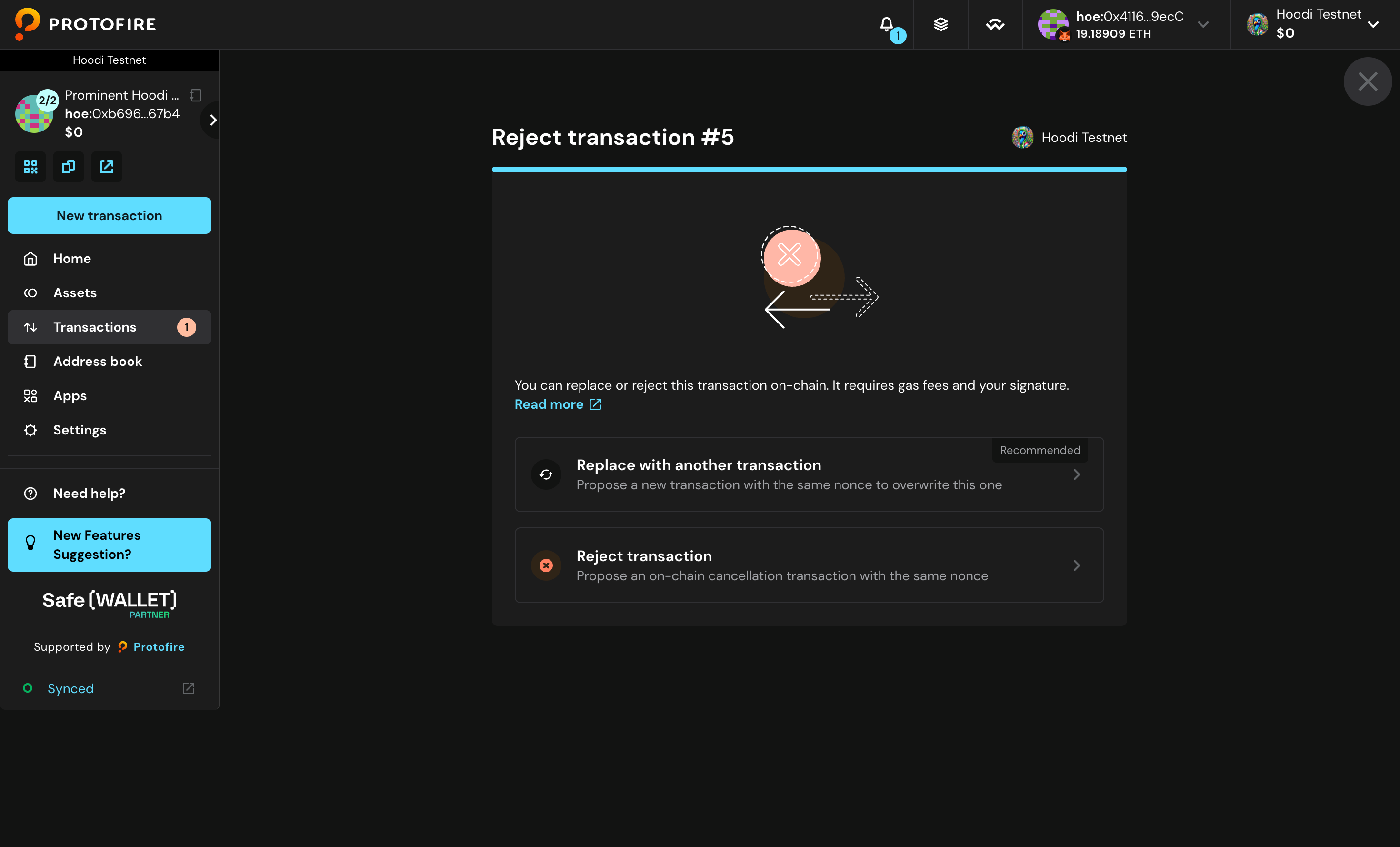
Replace with another transaction
- This option creates a new transaction to replace the one you want to remove.
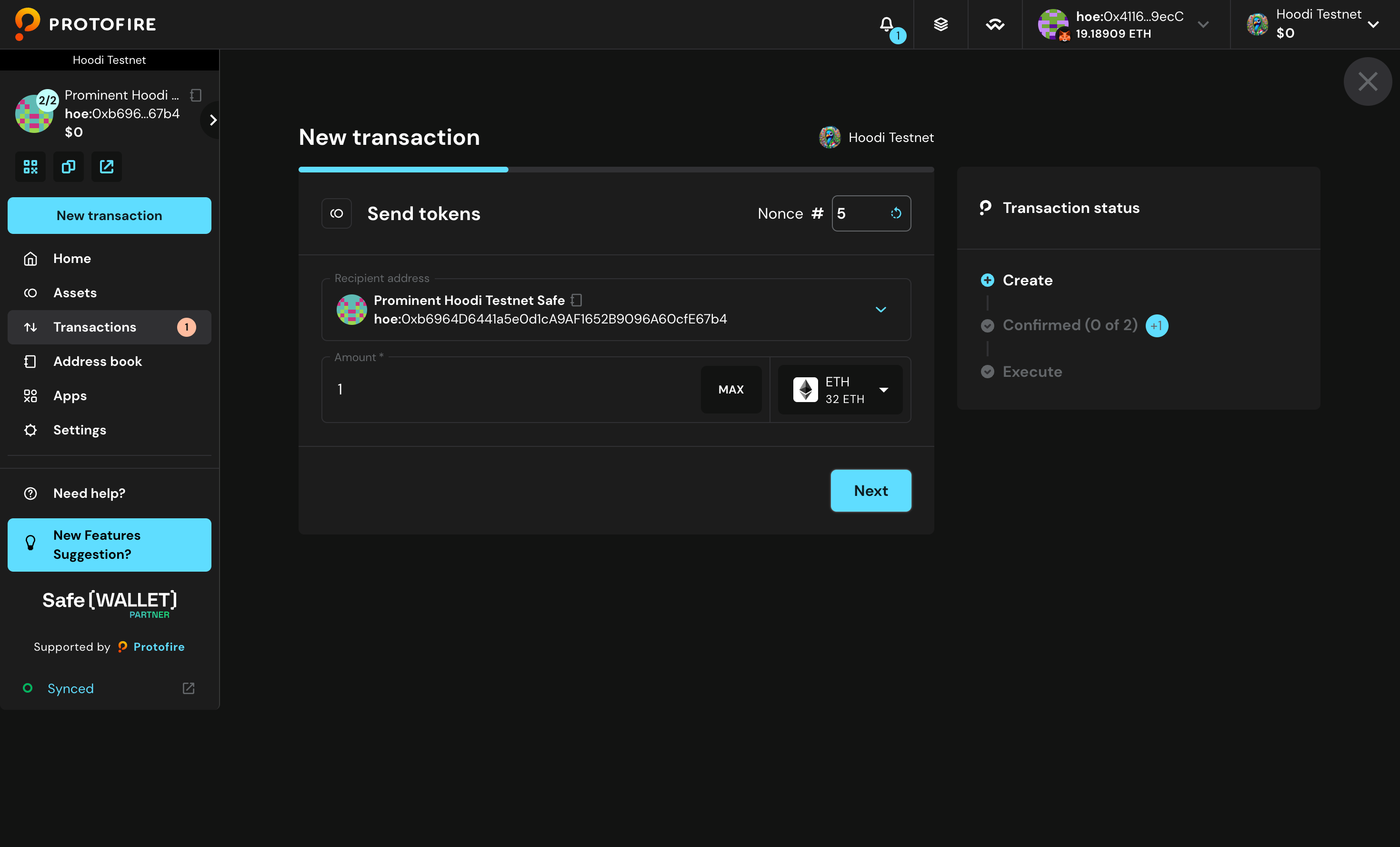
- Click Continue to proceed with the replacement.
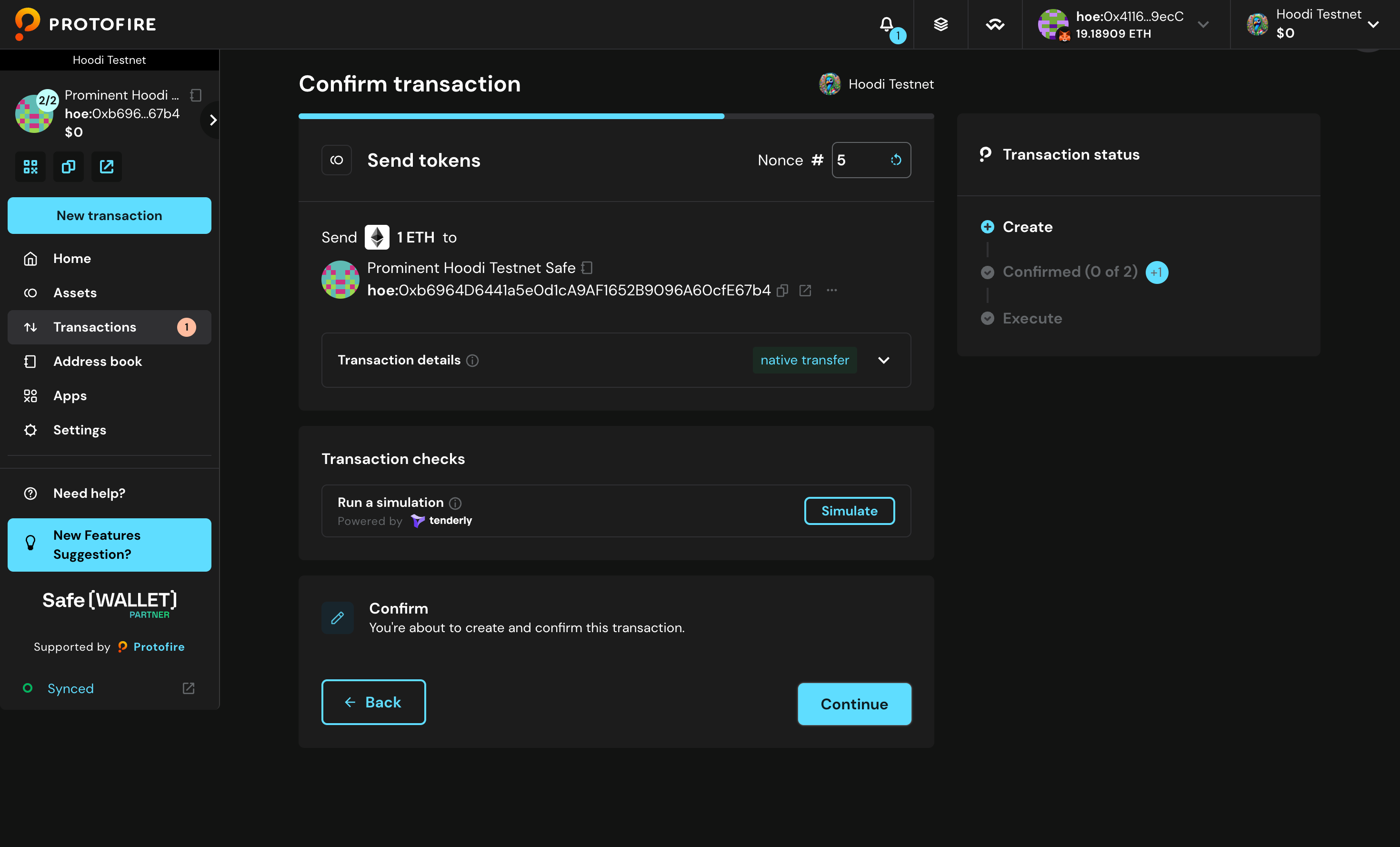
- Click Sign to sign the replacement transaction.
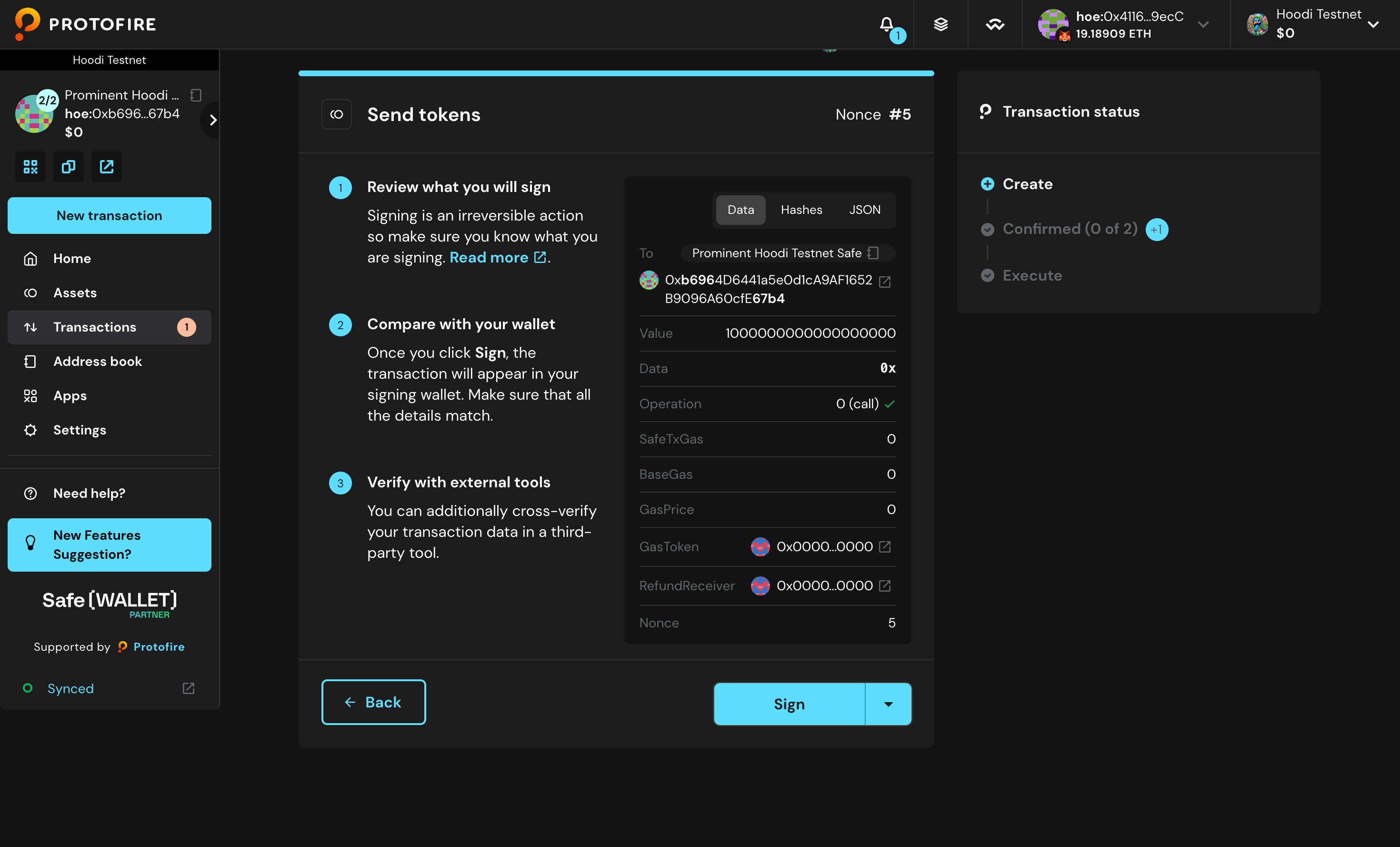
- The replacement must gather enough signatures to meet the threshold before it can replace the original transaction.
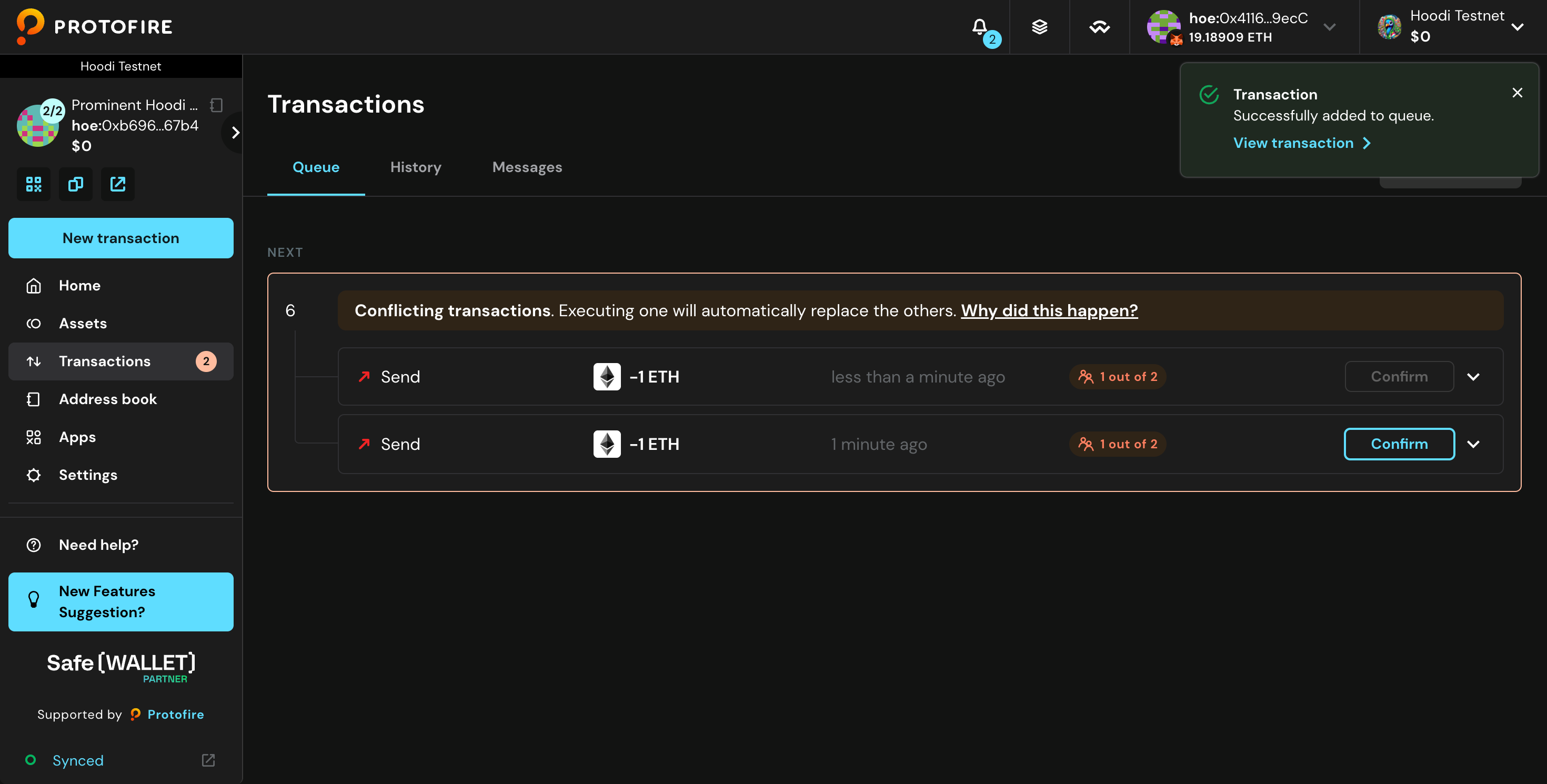
Reject Transaction
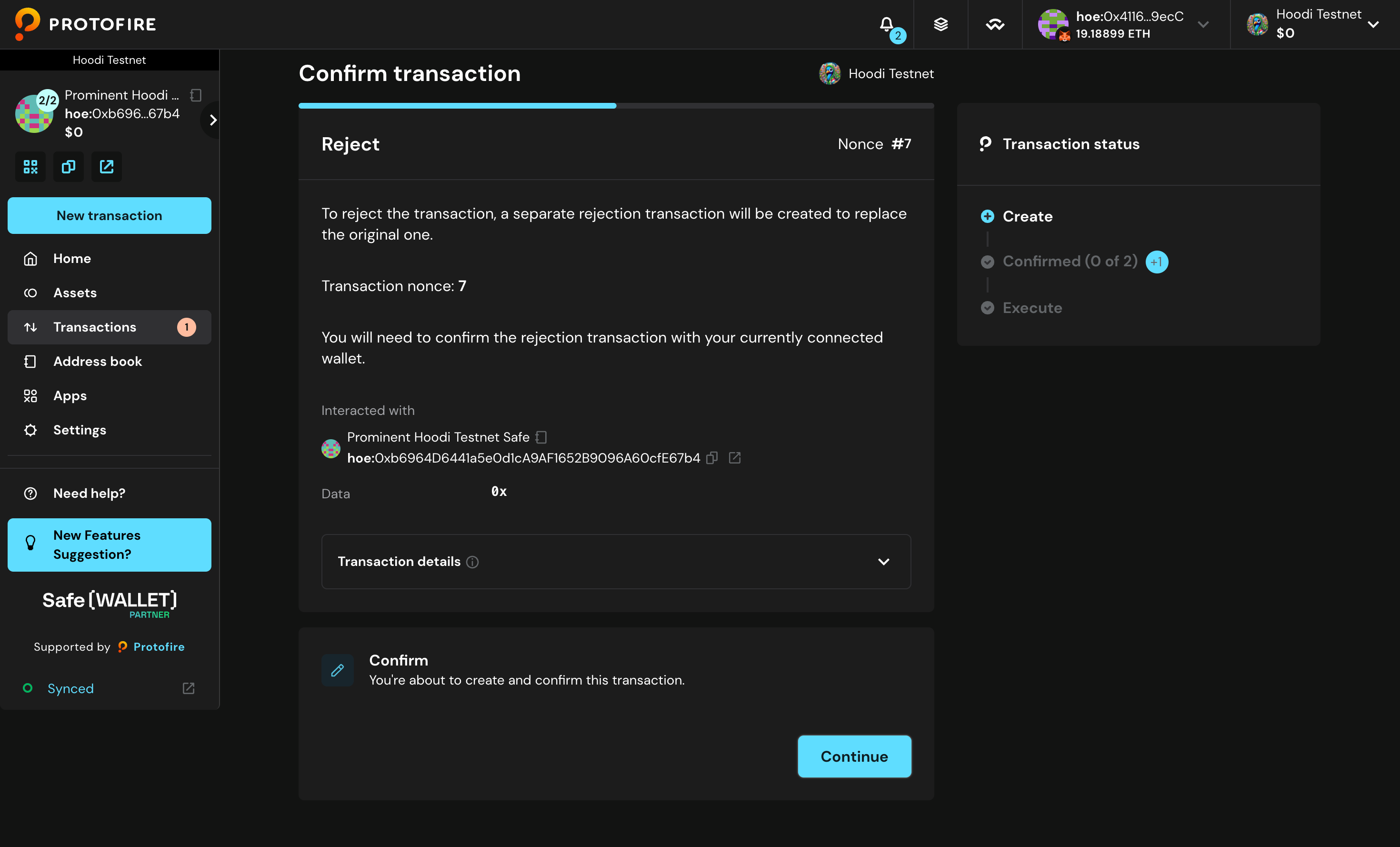
- Click Continue to confirm that you want to reject the transaction.
- Click Sign to confirm the rejection.
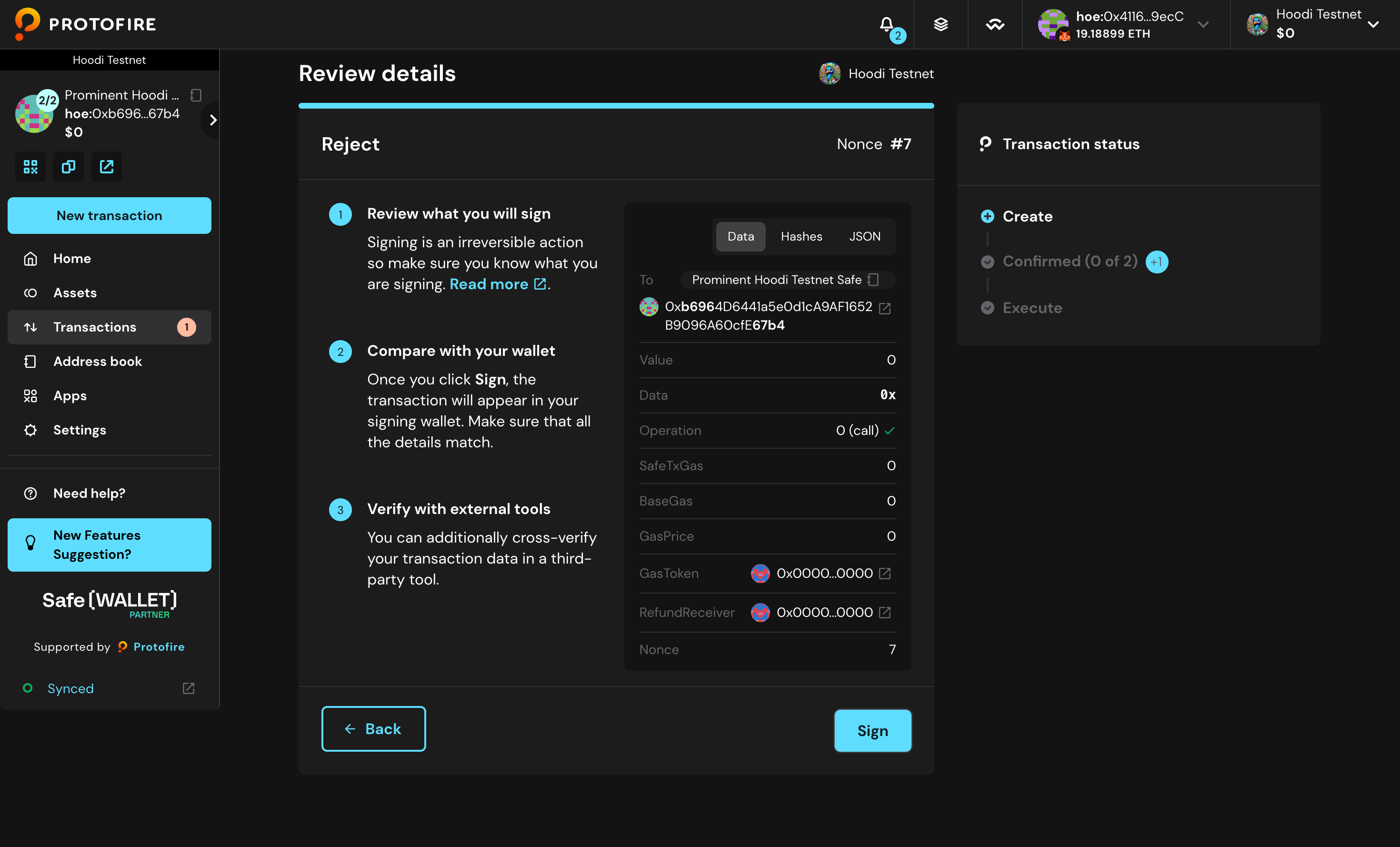
- It needs another signature to execute the on-chain rejection.